Atuin: shell history with context, full-screen search and encrypted sync
TL;DR
Atuin replaces shell history with SQLite, recording directory, exit code and duration. Ctrl+R opens a full-screen search and sync between machines is end-to-end encrypted. Always configure history_filter to keep secrets out.
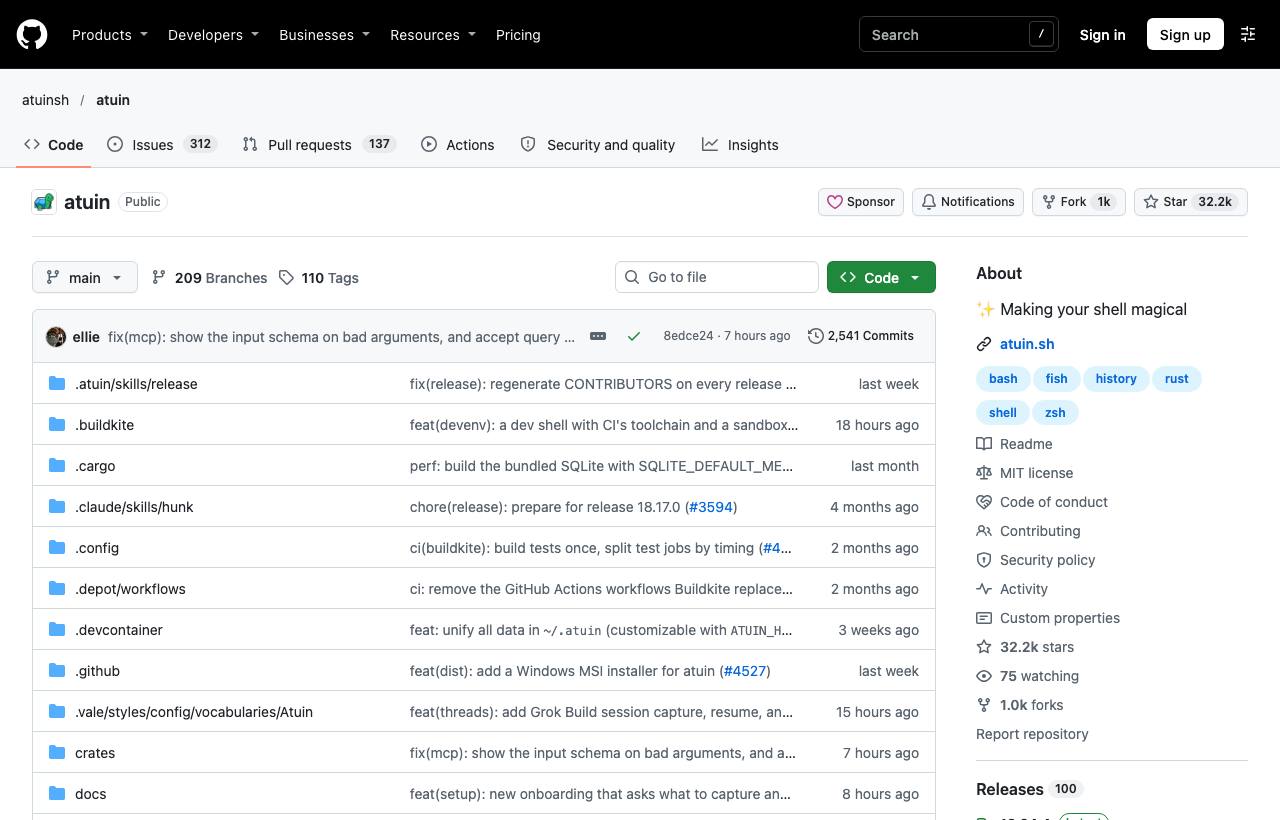
Default shell history is pretty poor: a text file with a line limit, lost entries when several windows are open, no idea which directory a command ran in or whether it succeeded, and nothing follows you to another machine. Atuin replaces shell history with a SQLite database, records extra context for each command, gives you a full-screen search UI on Ctrl+R, and can sync history between machines with end-to-end encryption.
Installation
# Official install script (from the README)
curl --proto '=https' --tlsv1.2 -LsSf https://setup.atuin.sh | sh

# Or Homebrew
brew install atuin

# Add to ~/.zshrc if the script didn't already
eval "$(atuin init zsh)"

# Import your existing shell history
atuin import auto
What does Atuin record?
| Information | Used for |
|---|---|
| Command and timestamp | Finding commands by time |
| Working directory | Filtering to commands run in this project |
| Exit code | Knowing what succeeded, skipping failures |
| Duration | Seeing which commands are slow |
| Host and session | Telling machines apart when syncing |
Searching with Ctrl+R
Press Ctrl+R (or the up arrow, configurable) for a full-screen search. Type a few letters to filter; press Ctrl+R again to cycle filter modes: current session, current directory, this host, or everything. Enter runs the command right away, Tab puts it on the command line to edit first.
atuin search --cwd . --exit 0 docker   # successful docker commands in this directory
atuin search --before "yesterday" kubectl
atuin stats                             # most-used commands
Syncing between machines
atuin register -u <name> -e <email>   # create an account on the sync server
atuin login -u <name>                  # log in on the second machine
atuin sync                             # manual sync (it auto-syncs periodically by default)
History is encrypted before it leaves your machine, so the server can't read it. You can use the server run by the Atuin team, self-host your own, or skip sync entirely and only use local search.
Useful configuration
File ~/.config/atuin/config.toml:
filter_mode = "directory"     # filter by current directory by default
search_mode = "fuzzy"
filter_mode_shell_up_key_binding = "session"
history_filter = [
  "^export .*TOKEN",            # don't store commands with tokens
  "^curl .*Authorization",
]
Caveats
- Command history often contains secrets (tokens, passwords as arguments). Use
history_filterto drop sensitive patterns, and think carefully before enabling sync on a work machine. - If you prefer the old up-arrow behaviour, you can stop Atuin from binding it in the config or at init.
- Atuin doesn't delete your shell's original history file; the two run side by side.
How to apply it
- Dev: Set
filter_mode = "directory": in each project, Ctrl+R shows only commands used there, like a per-project command notebook. - Tech Lead/DevOps: During incidents,
atuin search --cwdplus exit codes let you reconstruct the exact command sequence, useful for postmortems. - PM: Mind security policy: if history sync is allowed, specify which server may be used and require filtering of sensitive data.
Sources & references
- atuinsh/atuin — atuinsh (GitHub)