Starship: a fast, minimal prompt showing git, runtimes and cloud context
TL;DR
Starship shows context-aware information: git branch, runtime versions, command duration, Kubernetes context. Configure starship.toml, use a Nerd Font, and run starship timings when the prompt feels slow.
The prompt is what you look at most in a terminal, yet by default it only shows the host and directory. You can't tell which git branch you're on, whether there are uncommitted files, which Node or Python version is active, or whether you're pointed at a production Kubernetes cluster. Starship is a minimal, fast prompt that runs on any shell (bash, zsh, fish, PowerShell…) and shows just the information that matters for the current directory.
Installation
brew install starship                        # macOS
winget install --id Starship.Starship        # Windows
curl -sS https://starship.rs/install.sh | sh # Linux

# Add to the end of ~/.zshrc
eval "$(starship init zsh)"
# bash: eval "$(starship init bash)"   fish: starship init fish | source
For icons to render, install a Nerd Font (e.g. FiraCode Nerd Font) and select it in your terminal. Without one you'll see boxes instead of icons.
What does Starship show?
Each piece of information is a "module" that only appears when relevant:
| Module | Shown when | Information |
|---|---|---|
git_branch, git_status | Inside a git repo | Branch name; symbols for modified, untracked, ahead/behind |
nodejs, python, rust… | Directory has package.json, pyproject.toml… | Runtime version, active virtualenv |
cmd_duration | The previous command took a while | Execution time |
kubernetes, aws | When enabled in config | Context/namespace, AWS profile |
character | Always | Prompt symbol, changes colour when the last command failed |
Configuration
All customisation lives in ~/.config/starship.toml:
add_newline = false

[character]
success_symbol = "[➜](bold green)"
error_symbol = "[✗](bold red)"

[cmd_duration]
min_time = 2000          # only show if a command ran longer than 2s (in ms)

[kubernetes]
disabled = false         # off by default
style = "bold red"

[directory]
truncation_length = 3
Don't want to write it yourself? Use a preset: starship preset nerd-font-symbols -o ~/.config/starship.toml. See the list of presets on starship.rs.
Useful commands
starship explain: explains which module each part of the current prompt comes from.starship timings: times each module to find what makes the prompt slow.starship print-config: prints the effective configuration.
Caveats
- In very large repos the
git_statusmodule can be slow; check withstarship timingsand disable or limit it if needed. - Don't cram in too many modules: a long prompt eats your typing space. Only enable what you actually look at.
How to apply it
- Dev: Enable the modules for your languages so you always know you're on the right runtime and virtualenv, avoiding "works on my machine" bugs.
- Tech Lead/DevOps: Enable
kubernetesandawswith red styling for production contexts. One glance at the prompt tells you where you are before typing anything dangerous. - PM: A shared prompt config reduces wrong-environment incidents; setup takes minutes.
Sources & references
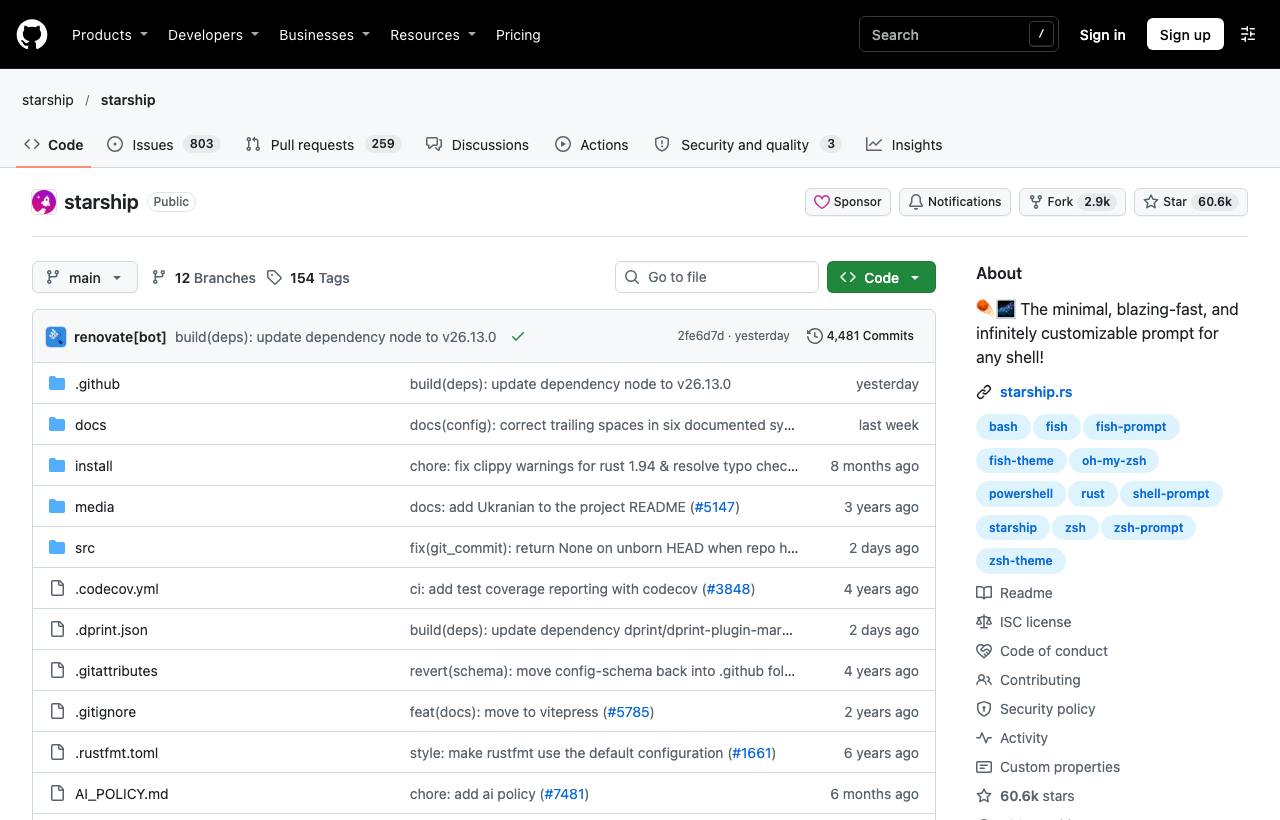
- starship/starship — starship (GitHub)